
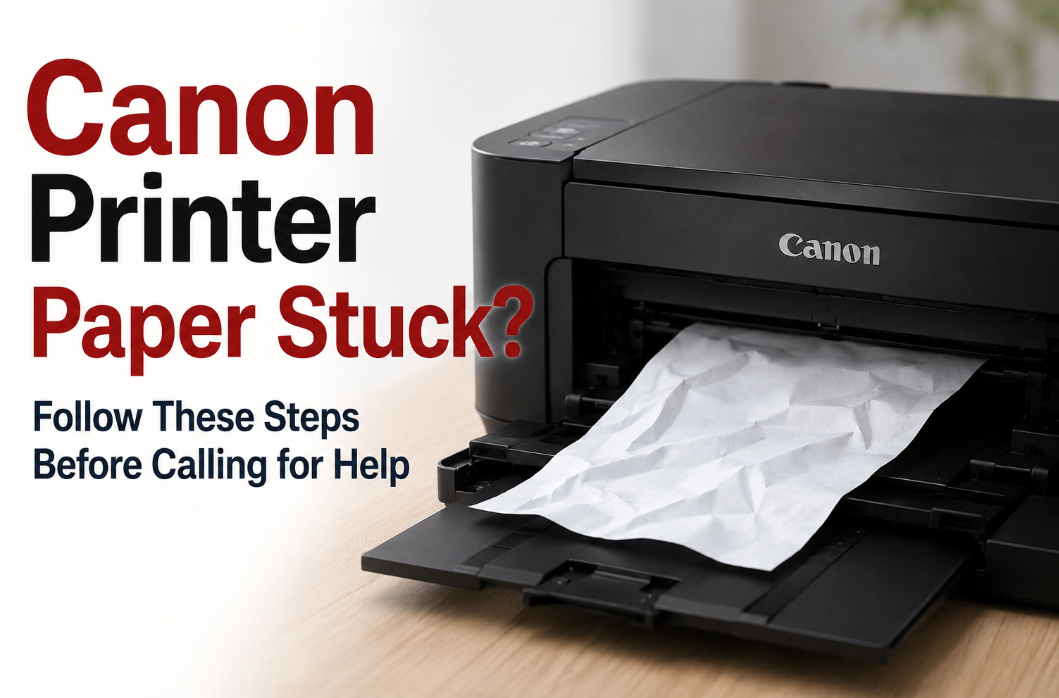
Most of the time, Canon printer paper stuck messages show up when you least expect them. If there is a jam, you can’t print anything—not even a contract, school papers, or a last-minute boarding pass. The way you handle the jam matters more than most people realize. A rushed or incorrect fix can turn a minor blockage into a mechanical problem that requires professional repair. Here is exactly what to do and what to avoid.
Step One: Do Not Pull Immediately
The first instinct when paper gets stuck is to grab and pull. Resist that urge. Pulling paper while the printer is still powered on risks activating the rollers and making the jam worse. Turn the printer off completely and unplug it from the power source before touching anything inside. Waiting ten to fifteen seconds after powering off ensures that all internal mechanisms have come to a complete stop. This single step prevents the majority of jams from becoming tears that leave fragments deep inside the machine.
Open Every Available Access Panel
Canon printers typically have a rear access panel, a front cartridge area, and in some models, a duplex printing unit. Open all of them before attempting to remove the paper. Having full access gives you the clearest view of where the paper is caught and how it is oriented. Trying to remove canon jammed paper from only one access point often means you are pulling against resistance from the other end, which increases the risk of tearing significantly.
Remove the Paper in One Smooth Motion
Once you can see the full extent of the jam, position both hands on the paper as close to the jammed section as possible. Pull smoothly and evenly in the direction the paper normally exits the printer. Do not pull toward yourself or at a sideways angle. If you feel significant resistance at any point, stop and reassess. Work the paper loose gently by slightly shifting your grip rather than increasing the pulling force. Slow and steady removal preserves both the paper and the printer’s internal components.
Inspect Every Part of the Paper Path Thoroughly
After removing the main piece of jammed paper, do not close the access panels yet. Use a flashlight to inspect the entire paper path from the input tray to the output slot. Check behind rollers, along feed guides, and near any visible sensors. Canon printer paper stuck problems that keep returning after a jam is cleared are almost always caused by a fragment that was left inside during the previous clearing. A one-minute inspection now prevents another jam within the next few print jobs.
Reassemble and Test Before Heavy Use
Once you are confident that the paper path is completely clear, close all the access panels in the correct sequence as shown in the printer manual. Plug the printer back in and power it on. Allow it to complete its full startup and initialization cycle. Then feed a single test page before resuming the original print job. A clean test page confirms that the jam is fully cleared and the feed mechanism is operating normally.
Addressing the Root Cause to Prevent Future Jams
A one-time jam is usually just bad luck. A second or third jam in quick succession points to a cause that needs to be corrected. Review the paper you are using, how the tray is loaded, and the condition of the rollers. If the rollers look glazed or feel smooth to the touch rather than slightly grippy, cleaning them is the next step. Canon printer paper jam events that happen repeatedly despite correct loading almost always come down to rollers that need cleaning or replacement.
If these fixes are not working, it is recommended to get Canon printer support online from reputable printer service providers like PrinterITHelp.
Conclusion
Clearing a canon printer paper stuck situation safely is straightforward when you follow the right sequence. Power off first, open all panels, pull smoothly, inspect for fragments, and test before resuming normal use. Preventing future jams requires the same attention to the basics: proper paper, correct tray loading, and clean rollers. For printers that continue to produce Canon jammed paper situations repeatedly, PrinterITHelp offers a professional assessment to identify whether mechanical wear or a hardware fault is driving the pattern.
